
Guides
Geometry Arrow Controls
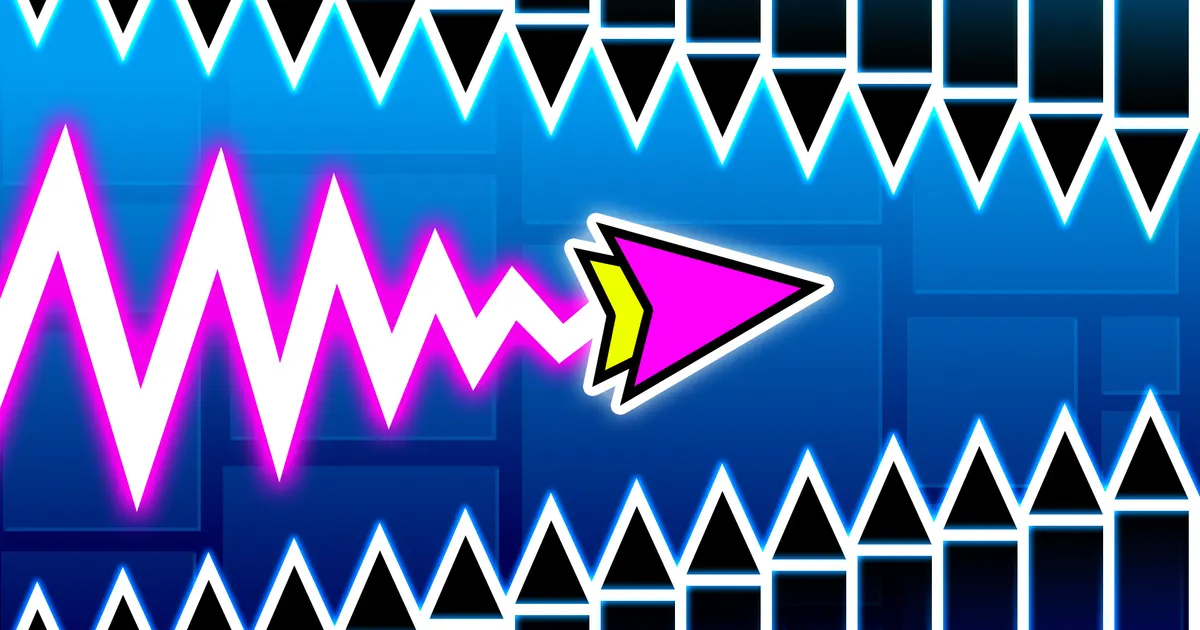
Geometry Arrow controls are simple, but they are not forgiving. The game is built around hold-and-release rhythm: press to rise, release to fall, and guide the arrow through narrow paths. Use the Geometry Arrow hub if you need the play page and related guides.
Last updated: May 9, 2026. Controls guide using public game sources.
Quick Answer
Use shorter inputs than you think. Geometry Arrow is easier when the arrow moves in smooth waves rather than sharp panic corrections.
Controls Table
| Action | Control | Use Case | Common Mistake |
|---|---|---|---|
| Rise | Hold mouse, key, or touch | Climb through gaps | Holding too long |
| Fall | Release | Drop under ceilings | Releasing too late |
| Micro-correct | Short tap or hold | Tight zigzags | Tapping without rhythm |
| Restart | Immediate retry | Route memory | Waiting too long between attempts |
Practice Method
Pick one input method and stick with it. Switching between mouse, keyboard, and touch changes muscle memory. Practice the first ten seconds of a level until it becomes automatic, then extend the route.
Related Guides
| Guide | Why it helps |
|---|---|
| Geometry Arrow Hub | Main hub |
| Play Online | Embedded game |
| Levels | Route pressure |
| Tips | Improvement habits |
| Unblocked | Access notes |
Sources
FAQ
What are the Geometry Arrow controls?
Use hold-and-release controls: hold to rise or angle upward, release to fall, and keep the rhythm smooth.
Is keyboard or mouse better?
Use whichever gives cleaner short inputs. Many players prefer one consistent key or mouse button.
Can I play on mobile?
Mobile play depends on the host version. Touch controls usually follow the same hold-and-release rhythm.
Why do I keep crashing?
Most crashes come from holding too long, releasing too late, or changing rhythm mid-corridor.